
Reviews
A Guide To Remove Objects From Video in 2026

At this point, there are already several solutions to the age-old problem of having good footage ruined by unwanted objects or elements. Thankfully, you can easily remove object from video with your PC, mobile phone, or via the web. Read through to learn how to do this:
Part 1: Using Your PC To Remove Objects From Video
Now, let’s see how you can use your PC to remove objects from videos. Let’s take a look at two options: Filmora and CapCut.
Wondershare Filmora
First, we have Wondershare Filmora. This tool is one of the best tools out there for video editing, owing to the fact that it offers easy access to professional-level tools. One good example of this is how you can easily use the powerful AI Object Remover tool.
Please check out the steps below to get started:
Step 1: Download, install, and launch Wondershare Filmora. Log in or sign up for a Wondershare account.
Step 2: Create a New Project, then add your video to the timeline. Do this by directly dragging the video or going to Stock Media > Project Media > Import.
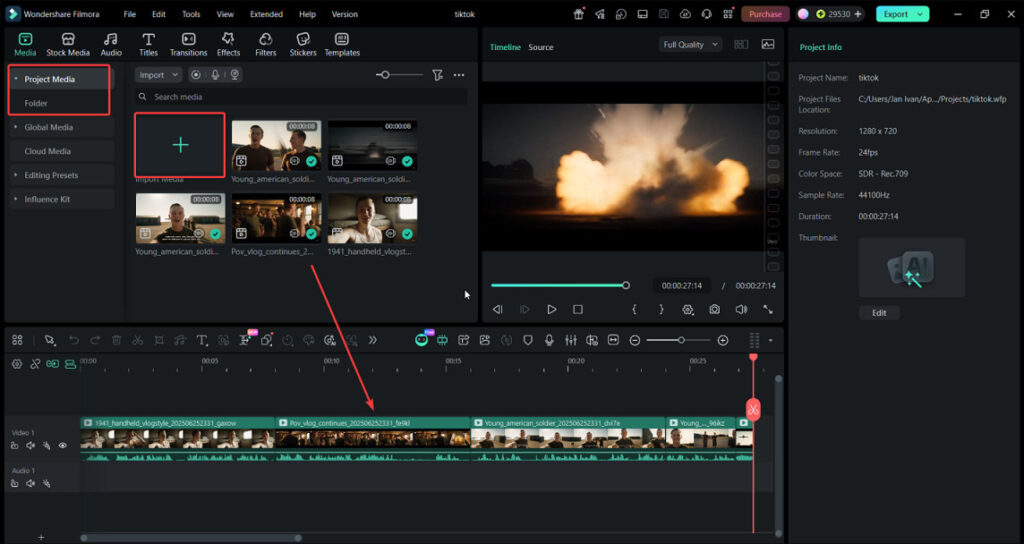
Step 3: Once the video is in the timeline, select it. Then, on the right-hand panel, go to Video > AI Object Remover.
Tip: You can also add the AI Object Remover tool to your quick toolbar by clicking the Custom toolbar button on the left-most portion and arranging it accordingly.
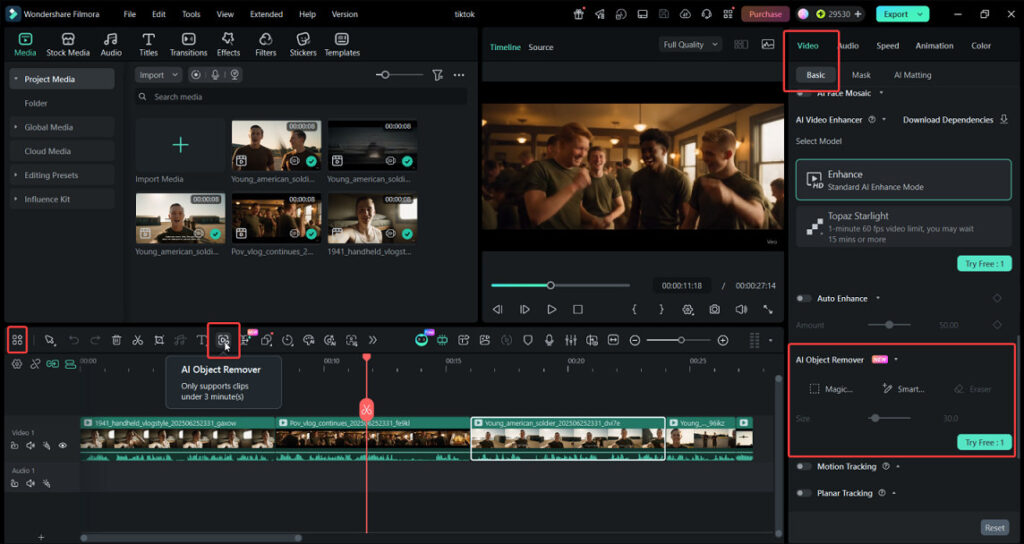
Step 4: There are two modes of selecting the objects to remove:
- Magic Box: This lets you create a rectangle that will contain the removable objects. Then, the AI will remove them accordingly.
- Smart Brush: On the other hand, this lets you do free-form brushing, allowing more precise removal of people or objects.
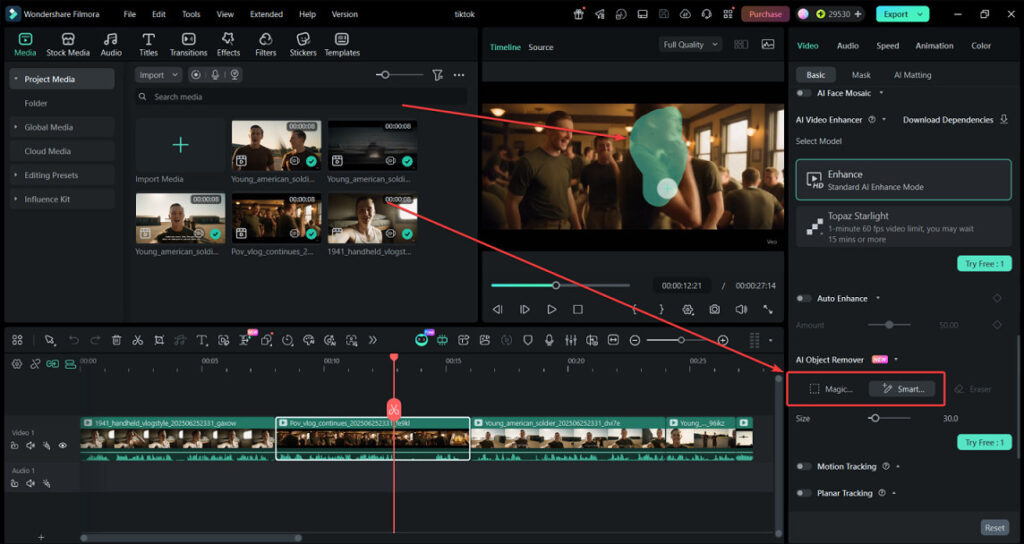
Step 5: After selecting the objects, wait a bit, and they will be magically removed from the video.
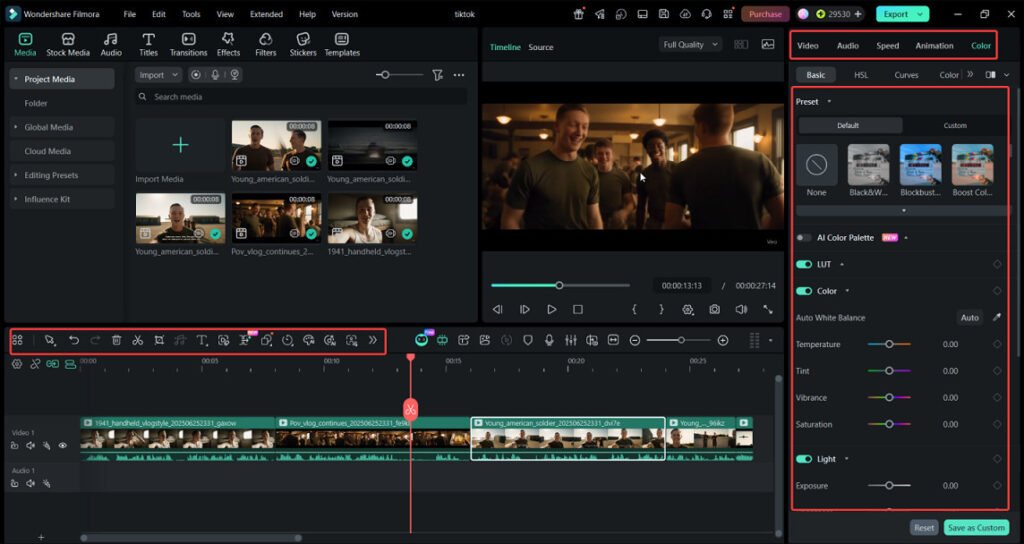
Step 6: Once done, export your work.
CapCut
Another good option is CapCut. Note that they also have an AI Object Remover, but here’s a general guide on how to do it manually for your guidance:
Step 1: Import your video to CapCut and drag your video to the timeline.
Step 2: Next, duplicate the clip (by copying and pasting), then select it. Under the Video tab, go to Mas and choose a fitting shape. Adjust it to cover the object you want removed.
Step 3: Once done, Export the video directly to TikTok or to your device.
Part 2: Using Your Android & iOS Phone To Remove Objects From Video
If you’re more of a mobile video editor, then read through this part to remove objects from a video with a phone. Again, we’ll be looking at the same two apps’ mobile counterparts: Filmora and CapCut mobile.
Wondershare Filmora
Yes, Filmora has a mobile version, and it’s just as powerful as its desktop counterpart. Here are the steps for using Filmora mobile for object removal.
Step 1: Create a New Project from the homepage.
Step 2: Select the clip from the timeline. Then, scroll through the bottom toolbar to find the AI Remover feature.
Step 3: The AI object remover tool for Filmora mobile uses two different selection tools:
- Auto: Tap an object and the app outlines the removal parameters for you.
- Brush: Draw the removal parameters (like the Smart Brush in desktop).
Step 4: Once done, export the content accordingly.
CapCut
For CapCut mobile, let’s use the tool’s AI object remover feature, so you can see how it works. You can also use the same function in the desktop app. Check out the steps below:
Step 1: Create a New Project.
Step 2: Select the clip from the timeline, then look for AI Remove from the bottom toolbar.
Step 3: Use either the Quick Brush or Brush to select feature. Select the Remove button once finished.
Step 4: Export your work accordingly.
Part 3: Using Web-Based Tools To Remove Objects From Video
If you need to remove objects from video quickly, installing programs can be a hassle. So, let’s take a look at web-based tools:
Media.io
For our first web-based tool, Media.io stands out as one of the best choices because it’s straightforward, and you can do your editing for free. It also has a host of other tools that you can explore for other video editing purposes.
Step 1: Go to the video eraser portal. Then, upload your video. Next, choose the Video Object Remover mode. Select a Mode, too.
Step 2: Then, use the brush to remove the unwanted people or objects from your video. Once done, click Generate.
Step 3: Wait for the results and download them to your device.
Fotor
For our second option, here’s Fotor. This tool is a good alternative because it offers not only video editing capabilities but also creative tools for presentations and editing.
Step 1: Go to the AI object remover site. Then, Upload Video.
Step 2: On this page, select whether to Remove Object or Remove Watermark. Then, drag your mouse like a brush to the person or object you want removed. Click Generate Full Video afterwards.
Step 3: Once done, export the video to your device.
Part 4: Comparing Video Object Removers
To help give you an informed choice, here’s a table comparing the video object removers we’ve discussed so far:
| Tool | OS | AI Object Remover? | Free/Free Version |
| Filmora | Windows, macOS, iOS, and Android | Yes, on both platforms | Free trial available; Free AI credits |
| CapCut | Windows, macOS, iOS, Android, Web | Yes, on all platforms | Free version available (separate AI credits) |
| Media.io | Web-based | Yes | Free online use (separate AI credits) |
| Fotor | Web-based | Yes | Free online use (separate AI credits |
Part 5: Tips and Tricks for Video Object Removal
Most of the work for flawless object removal starts with your footage. Nonetheless, here is a collection of tips to follow if you want a perfect video object removal experience:
- Make use of steady shots because it’s easier for the AI to “contextualize” the background of the video. This results in better filling in.
- If you’re manually removing objects, keep your masks as small as possible to make it more realistic.
- If you’re using AI, then make sure to use shorter clips. This results in less load for the AI and more accurate results.
FAQs
1. Will my video quality be reduced after using the object remover?
No. Even with the manual version of removing objects from video, you generally shouldn’t suffer video quality loss. For AI tools, this only happens if you use an unreliable tool.
2. Even if a person is moving, can I remove them from a video?
Yes. The latest AI tools these days track a person and remove all their instances from a video based on the brush selection.
3. Is there a free way to remove objects?
Yes, apps like Filmora and Media.io offer free credits on first start. However, if you need more, you’ll have to purchase more credits for object removal.


Ex-Navy SEAL sentenced for plot to attack police at ‘No Kings’ protests

Wife of Chiefs coordinator Eric Bieniemy shot by son in Virginia

Mitch McConnell remains in rehab, not medically cleared to return to Senate

Hurricane Genevieve becomes first Category 5 storm in eastern Pacific since 2024
-

 Legal2 days ago
Couple identified after family of 8 found dead in suspected Michigan murder-suicide
-

 World3 days ago
NATO intern arrested in Belgium over suspected espionage
-

 World6 days ago
Houthis claim missile and drone attacks on 2 Saudi oil tankers in Red Sea
-

 Politics5 days ago
U.S. sanctions new CJNG leader, more than 50 people and companies
-

 US News7 days ago
All 4 U.S. soldiers killed in Jordan and Iraq identified
-

 World7 days ago
Death toll from Guyana ferry disaster rises to 53
-

 Legal6 days ago
2 Indianapolis police officers shot during disturbance call
-

 Legal6 days ago
Puerto Rico man charged over threats to bomb White House, attack soldiers and Jewish people